You can automate Chrome from an AI assistant using Chrome DevTools MCP, a Model Context Protocol server that uses Puppeteer for browser automation. Once connected, your assistant can open a page, inspect its controls, click a button and read the result.
We'll use that to filter a small order dashboard and collect the orders ready to ship. It's a local demo with fake data, so you can try the workflow without sharing credentials or touching real orders.
You don't need to write a Puppeteer script for the MCP session. You do need an assistant that supports local MCP servers, and you should be able to see which tools it calls. If the underlying library is new to you, read What Is Puppeteer? first.
The Setup in Brief
- Add the
chrome-devtools-mcpserver to your MCP client. - Serve the demo HTML on your machine.
- Ask the assistant to inspect the page, apply the filter and read the visible rows.
- Check the returned orders against the page, then keep a script if you need to repeat the job.
This tutorial uses Chrome DevTools MCP, maintained by the Chrome DevTools team. Other servers called "Puppeteer MCP" can expose different tools. Installing one doesn't give you every Puppeteer method automatically.
1. Connect Chrome DevTools MCP
You'll need Node.js LTS, npm, Google Chrome and an MCP-compatible assistant. Follow the project's requirements and installation instructions if any of those are missing.
For clients that accept a mcpServers JSON configuration, add this server entry:
{
  "mcpServers": {
    "chrome-devtools": {
      "command": "npx",
      "args": [
        "-y",
        "chrome-devtools-mcp@latest",
        "--isolated",
        "--no-usage-statistics",
        "--no-performance-crux"
      ]
    }
  }
}
Merge the entry with any servers you already have. Don't replace your whole configuration file. Some clients use a different format or an Add MCP Server interface. The official client configuration guide has the specific steps for supported clients.
--isolated starts Chrome with a temporary profile, without your everyday browsing session. The other two flags turn off the server's usage statistics and its CrUX field-data integration. You don't need a remote debugging port for this setup.
Restart or reconnect the client if it requires that to load new servers. Check that chrome-devtools appears as connected and exposes tools such as new_page, take_snapshot and click. The browser starts when a tool first needs it, so no Chrome window immediately after connecting isn't necessarily an error.
You don't need to install Puppeteer separately. This server provides the Puppeteer-based automation. The configuration reference covers options such as --headless and custom Chrome paths.
2. Open the Demo Dashboard Locally
Download the order dashboard HTML. Save it as orders.html in a new folder, then open a terminal in that folder.
If you have Python 3 installed, start a small local server:
python3 -m http.server 8000 --bind 127.0.0.1
Leave that terminal running. The page is now available at http://127.0.0.1:8000/orders.html.
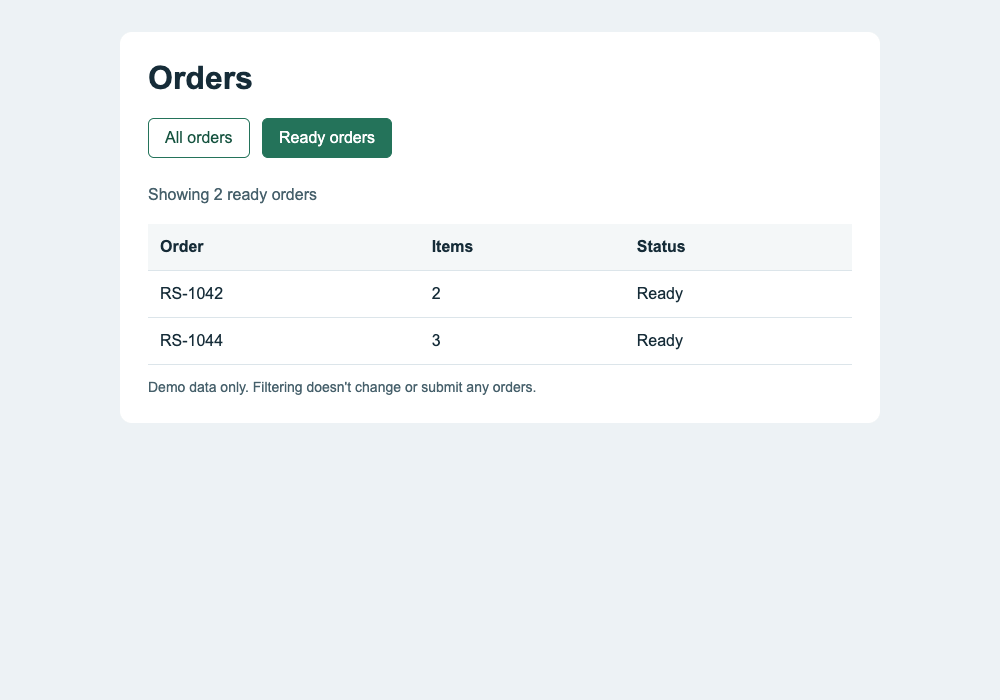
The demo has three orders and two filters, All orders and Ready orders. Clicking a filter only changes which rows are visible. It doesn't submit or modify orders.
The browser launched by the MCP server needs access to that address. This example assumes the server runs on your computer. A browser in a remote container won't reach your laptop's server through its own 127.0.0.1 address.
3. Ask the Assistant to Filter and Read the Page
Give the assistant the URL, the task and the expected output format:
Use the chrome-devtools browser tools to open
http://127.0.0.1:8000/orders.html.

Inspect the page, click Ready orders, and read the visible rows.
Return JSON containing each visible order's order number, item count
and status. Don't include hidden rows.

Use the browser to verify the result. Don't read the HTML source file
from disk, edit the page code or change any orders.
The source-file instruction matters for this example. An assistant with repository access could read the fixture and answer without ever exercising the filter. That's not the workflow we're trying to check.
You should see browser tool calls in the assistant's activity. It will usually open the URL, request a page snapshot, find the filter button and click it. After the click, it should inspect the updated page before extracting the rows.
Chrome DevTools MCP's tool reference describes those operations:
| Tool | What it contributes to this workflow |
|---|---|
new_page or navigate_page |
Opens the local dashboard |
take_snapshot |
Returns structured page content and element identifiers |
click |
Activates the filter using the button found in the snapshot |
wait_for |
Waits for specific confirmation text when needed |
evaluate_script |
Can read the visible table rows as structured data |
The exact sequence can vary. The important part is that the assistant uses the actual filter and checks its result. Element identifiers come from the current snapshot and can change after navigation or a page update. Don't hard-code an identifier from an earlier run.
4. Check the Result
The returned data should contain these two orders:
[
  { "order": "RS-1042", "items": 2, "status": "Ready" },
  { "order": "RS-1044", "items": 3, "status": "Ready" }
]
RS-1043 is still in the document, but hidden by the filter. An extraction that reads every table row can accidentally include it. This is why we asked for the visible rows and checked the result after the click.
The page should also say Showing 2 ready orders, with Ready orders selected. You can ask the assistant to capture a screenshot as supporting evidence, but the image doesn't replace checking the row values.
Tip
A successful click isn't the same as a successful task. For a real dashboard, check the filter state, wait for the updated results, then extract the data. Loading indicators or requests may finish after the click returns.
5. Use MCP to Investigate a Failed Step
MCP is useful when you don't yet know why an automation failed. The assistant can inspect the page state, console messages and network requests before suggesting a fix.
For example:
The Ready orders filter isn't changing the table on my local page.
Reproduce the problem using the browser tools. Inspect console errors
and relevant network requests. Tell me what you observed and which
step failed. Don't edit the source yet.
On the working demo, there shouldn't be an application error. On your own page, this can help distinguish a selector that no longer matches from a JavaScript error or a failed data request.
Give the assistant a concrete result to check. "Make sure the page works" is much less useful than "filter for Ready and verify that only Ready rows remain."
6. Keep a Script for Repeat Jobs
Once you understand the page, put a recurring workflow in code. You can ask the assistant to write the script, but review its selectors, waits and output checks before scheduling it.
Our Puppeteer introduction includes a tested script that applies this filter and extracts the rows. Download both files into the same folder:
That script uses the local HTML directly and doesn't require an MCP client. A deployed version would navigate to the real dashboard and handle its authentication and loading states.
For screenshot tasks, continue with capturing one HTML element or waiting for a page to finish rendering. If you need image generation from an assistant rather than general browser control, the HTML/CSS to Image MCP integration exposes rendering and template operations directly.
Keep Browser Access Scoped
Browser content and tool results are shared with your assistant's MCP client. Use demo data or test accounts, and check your AI provider's data handling before opening private pages. A temporary browser profile separates session data, but it doesn't limit which sites the assistant can visit or which buttons it can press.
Treat instructions found inside a page as page content, not permission to perform another task. Keep tool approval enabled for consequential actions. This example only reads a local demo and changes its filter.
Frequently Asked Questions
Is Chrome DevTools MCP the Same as Puppeteer?
No. Puppeteer is the browser automation library. Chrome DevTools MCP is a server that uses Puppeteer and exposes browser and DevTools tools to MCP clients. The assistant calls those tools rather than importing Puppeteer directly.
Can Chrome DevTools MCP Automate Firefox?
No. This server targets Chrome and Chrome for Testing. Puppeteer's own Firefox support doesn't mean a server built on Puppeteer exposes Firefox automation.
Do I Need an API Key?
Not for the local Chrome DevTools MCP server. Your AI assistant may require its own account or model credentials. The demo page needs neither a login nor an API key.
Why Is the Server Connected but Chrome Hasn't Opened?
Chrome starts when a tool first requires a browser. Ask the assistant to open the demo URL. If that fails, check the server's logs, Chrome installation and Node.js version rather than assuming connection alone should launch a window.
How Does This Compare with Playwright MCP?
They are separate MCP servers with different browser tooling. Chrome DevTools MCP uses Puppeteer and offers Chrome-specific inspection. Playwright MCP uses Playwright for browser interaction. Our Playwright and Puppeteer comparison covers the underlying libraries and what to check when choosing an MCP server.