
Playwright is an open-source browser automation framework maintained by Microsoft. It lets you control Chromium, Firefox and WebKit through code, using JavaScript/TypeScript, Python, Java or .NET.
A Playwright script can open your site, fill in a form, click Submit and check the result. It uses an actual browser, so the page's JavaScript and CSS run too. It's commonly used for end-to-end testing, where a test follows a user flow through the interface instead of calling the application's API directly.
You can also use Playwright for standalone jobs, including screenshots and data extraction. You don't have to write a test suite to use its browser automation library.
We'll try a booking-form test, explain how browser sessions and waiting work, and look at Playwright MCP for AI-assisted browser tasks. For a library comparison, see how to choose between Playwright and Puppeteer.
What Is Playwright Used For?
- Testing user flows: Check that someone can sign in, complete a booking or change a setting through the interface.
- Cross-browser testing: Run the same checks against Chromium, Firefox and WebKit.
- Web scraping: Read information after a page's JavaScript has populated it.
- Debugging: Inspect failed requests, console errors and the page state around a broken step.
- AI-assisted browser work: Let an assistant inspect and interact with a page through Playwright MCP.
- Screenshots and exports: Capture a page or element, or generate a PDF with headless Chromium.
The booking example below focuses on interaction and checking the result. We already cover image exports in our JavaScript and Python tutorials.
Playwright Library vs. Playwright Test
These names refer to different parts of the project. The distinction affects what you install and how you run your code.
| Playwright Library | Playwright Test | |
|---|---|---|
| Main purpose | Scripts that control browsers | Automated tests for web applications |
| Node.js package | playwright |
@playwright/test |
| Browser setup in code | You launch the browser and create pages | The test runner supplies isolated pages and contexts |
| Assertions and reports | Use your own checking and reporting code | Includes retrying assertions and test reports |
| Run command | node your-script.mjs |
npx playwright test |
For a screenshot job, the library is usually enough. For a test suite, use Playwright Test rather than assembling the runner, reporting and browser lifecycle yourself. The official library guide explains the split.
Playwright Test is the JavaScript/TypeScript framework. Other languages use their own testing ecosystems. For example, Playwright recommends its Pytest plugin for Python and provides test framework integrations for .NET. The language guide lists the options.
Which Browsers Does Playwright Support?
Playwright supports three browser engines:
- Chromium, the open-source browser project behind Chrome and Edge.
- Firefox, Mozilla's browser.
- WebKit, the engine used by Safari.
You can run them headless, without a visible window, or headed while you watch the browser. Playwright can also use supported installed Chrome and Edge channels.
WebKit coverage is useful, but it isn't identical to running Apple's Safari application on an iPhone. Playwright uses its own WebKit builds. Likewise, a mobile device preset emulates settings such as the viewport and touch support. It doesn't turn a desktop worker into a physical phone. The browser documentation describes those boundaries.
If your job only needs Chromium, you can install just that browser.
What Is a Browser Context?
A browser context is an isolated session with its own cookies and browser storage. One browser process can run several contexts. That lets you check a workflow as two different users without sharing their login state.
Playwright Test gives each test a fresh context by default. A login created in one test won't silently carry into the next. If a test needs an authenticated user, you can arrange that explicitly rather than relying on the order the tests run.
With the standalone library, you create and close contexts yourself. The isolation guide explains the behavior in more detail.
Try a Small Playwright Test
We'll check a booking form. The test fills in a name, clicks a button and verifies the confirmation. It then saves a screenshot of the completed form.
The HTML is included in the test so you can run it without a local web server. It demonstrates the browser interaction, not a real booking backend.
In a new Node.js project, install the test package and Chromium:
npm install --save-dev @playwright/test
npx playwright install chromium
Save this as booking.spec.js:
import { test, expect } from "@playwright/test";

test.use({ viewport: { width: 720, height: 480 } });

test("shows the guest's booking confirmation", async ({ page }) => {
  await page.setContent(`
    <!doctype html>
    <html lang="en">
      <head>
        <meta charset="utf-8">
        <title>Workshop booking</title>
        <style>
          body { margin: 0; padding: 32px; background: #f1f3f8;
                 font-family: Arial, sans-serif; color: #202b47; }
          main { width: 420px; padding: 28px; background: white;
                 border-radius: 12px; }
          h1 { margin-top: 0; }
          label, input { display: block; margin: 12px 0; }
          input { padding: 10px; font: inherit; }
          button { padding: 12px 16px; background: #384eb8;
                   color: white; border: 0; border-radius: 6px;
                   font: inherit; cursor: pointer; }
          [role="status"] { color: #24694b; font-weight: bold; }
        </style>
      </head>
      <body>
        <main>
          <h1>Saturday pottery workshop</h1>
          <label for="guest">Your name</label>
          <input id="guest" autocomplete="name">
          <button type="button" id="book">Book a place</button>
          <p role="status"></p>
        </main>
        <script>
          document.querySelector("#book").addEventListener("click", () => {
            const name = document.querySelector("#guest").value;
            document.querySelector('[role="status"]').textContent =
              "Booked for " + name;
          });
        </script>
      </body>
    </html>
  `);

  await page.getByLabel("Your name").fill("Sam");
  await page.getByRole("button", { name: "Book a place" }).click();
  await expect(page.getByRole("status")).toHaveText("Booked for Sam");

  await page.getByRole("main").screenshot({ path: "booking.png" });
});
Run it with:
npx playwright test booking.spec.js --browser=chromium
The command reports whether the test passed and writes booking.png to your current directory. Playwright Test creates the browser session and cleans it up after the test.
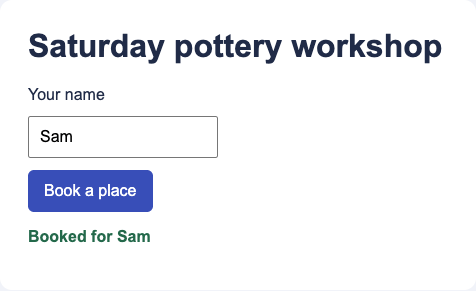
Notice that the test checks the confirmation text before saving an image. A screenshot alone wouldn't tell you that clicking the button worked. Playwright also supports visual comparison assertions when you want to check an image against an approved baseline.
For your own application, replace setContent() with navigation to the page you want to test. Keep the interaction and assertion tied to what the user should be able to do.
How Auto-Waiting Works
A locator describes an element you want to interact with. In the example, getByLabel("Your name") finds the input through its label. getByRole("button", { name: "Book a place" }) finds the button through its role and accessible name.
Before clicking, Playwright checks that the target is visible, stable, enabled and able to receive the click. It waits for those checks rather than making you add a sleep before every action. The checks vary by action, as documented in the auto-waiting guide.
The assertion waits too. toHaveText() retries until the expected text appears or its timeout expires. That's different from reading the text once and comparing it immediately. See the assertion reference for the available checks.
Tip
Auto-waiting doesn't mean the whole application is ready. A button can be clickable while a report is still loading. Before capturing a screenshot, wait for the content you actually need. Our page-readiness tutorial covers data, fonts, images and charts.
What Happens When a Test Fails?
On a local machine, you can run a test with --headed to watch it happen. CI failures need more context because you weren't there to see the browser.
Playwright Test can record a trace containing the sequence of actions, page snapshots and network activity. The Trace Viewer lets you inspect what happened around a failed step. Traces need to be enabled in your configuration or run options. They're not automatically saved by the small example above.
This is one of the practical reasons to use the test framework. A failure report that shows the state of the page is much easier to investigate than a log line saying that a click timed out.
What Is Playwright MCP?
Playwright MCP is a server that gives an AI assistant browser tools built on Playwright. MCP stands for Model Context Protocol. Instead of only writing automation code, a connected assistant can inspect the page, fill fields, follow links and check what changed.
The Microsoft-maintained server uses structured page snapshots, including element roles and accessible names. That gives the assistant a way to identify a button or input without guessing its position from a screenshot.
For example, you could ask it to open a local booking page, try an empty submission, then enter a guest name and report the confirmation. That's useful while building or debugging a page. A repeatable CI check should still live in a test file with explicit assertions.
Playwright MCP is separate from Playwright Test. Connecting the server doesn't create a regression suite or run your existing tests automatically. The server also exposes tools beyond a simple script, so connect it to a test session rather than a browser full of personal accounts.
For a Puppeteer-based MCP workflow, see how to automate Puppeteer with MCP. It uses Chrome DevTools MCP to inspect and filter a local order dashboard.
Can You Use Playwright Without Writing Tests?
Yes. Use the playwright library for a standalone script, or a compatible MCP server for an assistant-driven session. For a fixed browser workflow, a script gives you explicit steps to rerun. For exploratory work, MCP lets the assistant respond to what it finds on the page.
If all you need is a rendered image, the HTML/CSS to Image API handles that without browser workers in your application. General browser interaction, such as the booking test above, still calls for an automation tool.
Frequently Asked Questions
Is Playwright Free?
Yes. Playwright is open source under the Apache 2.0 license. The library and test runner don't charge per test or screenshot. Your CI workers, servers or hosted browser provider can still have costs.
Is Playwright Only for JavaScript?
No. It has official APIs for JavaScript/TypeScript, Python, Java and .NET. The browser automation features are available across those languages, but the test runners and integrations differ.
Is Playwright the Same as Selenium?
No. They are separate browser automation projects. Playwright manages compatible browser builds and offers its own Node.js test framework. Selenium has its own language bindings and infrastructure, including Selenium Grid. Which fits better depends partly on what your team already runs.
Does Playwright Replace Unit Tests?
No. Use it to check browser behavior and user flows. Unit tests are usually a better place to cover lots of input combinations for a calculation or a standalone function. You can test that the booking form works in Playwright without testing every pricing rule through a browser.
Can I Use Playwright Without Installing a Browser on My Server?
Yes, by connecting to a compatible remote browser service. For image generation, a rendering API is another option. Installing only the Playwright package doesn't remove the need for a browser process somewhere.