og:video is an Open Graph meta tag that gives apps a video to show when someone shares your page. In an app that supports it, a link can include a playable product demo, animation or short walkthrough.
Support varies, though. Adding the tag does not make every social preview move, and you still need an og:image for apps that show a thumbnail instead. This guide covers the metadata, hosting checks and testing that make the two work together.
If you need to make the assets first, create an animated social preview with HTML and CSS. That tutorial produces a short MP4 and a matching PNG from one design.
TL;DR: Add a Video to a Link Preview
- Create a short, publicly accessible MP4 and a separate PNG or JPEG poster.
- Put the absolute video URL in
og:video, followed by its MIME type and actual pixel dimensions. - Keep
og:image, the page title, description and canonical page URL in the metadata. - Serve the tags in the initial HTML response. Both media URLs must work without a login, cookies or a bot challenge.
- Check video delivery, including byte-range requests, then share the page in the apps your audience uses. A metadata checker alone cannot prove playback.
1. Understand What og:video Adds
The Open Graph protocol defines og:video as optional metadata for a video associated with a page. It describes a resource. The app reading the metadata decides how to display it.
That can be useful when motion explains something a still image cannot: a menu opening, a chart updating, an animation preset or a few seconds of a game. Someone receiving the link gets a better idea of what they will find on the page.
Apple Messages is a documented example. Apple says a direct, downloadable video referenced by og:video can play automatically in the preview. Embedded HTML players do not provide the same inline behavior. See Apple's rich-preview guidance.
Other apps can use different rules, special integrations or provider-specific embeds. Slack, for example, documents both metadata-based previews and app-controlled unfurls. Seeing a YouTube player there does not prove that an arbitrary MP4 will get the same treatment.
Why og:video Does Not Replace og:image
og:image is one of Open Graph's four required basic properties. og:video is an optional addition. Keep a useful still image even when the video is the main thing you want people to see.
An app may display only the image, delay the video or require a tap. Playback settings and connection conditions can affect the result too. You cannot force another app to autoplay or loop by adding those attributes to your own page's <video> element.
A link preview is also different from a native video post. If your goal is a video in a social feed, uploading the MP4 through that platform's publishing tools is a separate option. Open Graph metadata applies when people share a URL.
2. Prepare the Video and Poster
For a short animated card, start with:
| Asset | Practical starting point |
|---|---|
| Video | A 3–5 second MP4 with H.264 video and no essential audio |
| Poster | A PNG or JPEG that makes sense without playing the video |
| Dimensions | 1200 × 630 for both, so the composition stays consistent |
| URLs | Public HTTPS addresses that will remain available |
These are starting settings for a compact preview, not universal Open Graph requirements. The protocol does not prescribe a video duration or a 1200 × 630 canvas.
Keep the files small. Apple's guidance currently gives a combined 10 MB budget for associated preview resources, including images, icons and video. Aim well below that rather than treating it as a target.
Here is a four-second example made from HTML and CSS:
And the separate still image:
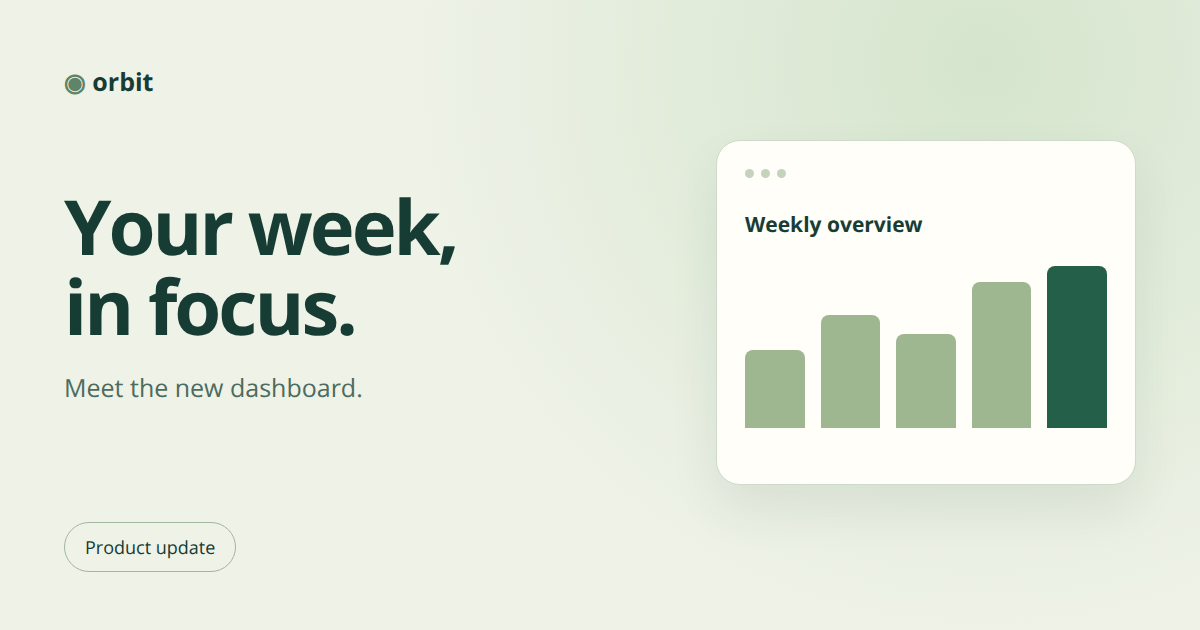
The headline remains visible throughout the animation. That matters when someone sees a small thumbnail or decides not to play it. The companion tutorial includes the HTML and rendering script.
3. Add the Tags to the Page's Head
Add these to the HTML page people will share. Replace the example URLs with your page and media URLs:
<meta property="og:type" content="website">
<meta property="og:title" content="Meet the new Orbit dashboard">
<meta property="og:description" content="A new weekly overview for your team.">
<meta property="og:url" content="https://example.com/updates/dashboard">

<meta property="og:image" content="https://cdn.example.com/dashboard-v1.png">
<meta property="og:image:type" content="image/png">
<meta property="og:image:width" content="1200">
<meta property="og:image:height" content="630">
<meta property="og:image:alt" content="The new Orbit dashboard with a weekly activity chart.">

<meta property="og:video" content="https://cdn.example.com/dashboard-v1.mp4">
<meta property="og:video:type" content="video/mp4">
<meta property="og:video:width" content="1200">
<meta property="og:video:height" content="630">
The two sets of dimensions describe the actual files, in pixels. They are not instructions to resize the video or crop the poster. Keep each resource's properties together, immediately after its og:image or og:video tag.
You may also see og:video:secure_url. It supplies an HTTPS alternative when the main video address uses HTTP. With an HTTPS og:video URL already in place, you do not need a different address for it.
Choose og:type for the Page
og:type describes the page, while og:video:type describes the file's MIME type.
Use website for a general landing page, or article for a blog post. A page whose main content is a video can use a video object type such as video.other. A supporting animation does not require changing every page to video.other.
Return the Tags Before JavaScript Runs
Render the tags on the server or include them in your static HTML. A client-side script that appends them after loading is unreliable for link previews. Apple's preview fetcher, for example, does not execute JavaScript.
Check the public page's source, rather than just the browser's Elements panel:
curl -L -sS https://example.com/updates/dashboard \
  | grep -iE 'og:(video|image|type|url)'
Also check for duplicate tags added by a CMS, theme or SEO plugin. An earlier video or image can take precedence over the one you meant to publish.
4. Check That the Video Can Be Downloaded and Played
The URL in og:video should return the video file, with Content-Type: video/mp4. A watch page, login screen or HTML error response is not an MP4, even if its URL ends in .mp4.
Check the response without your browser session:
curl -L -sS -o /dev/null -D - \
  https://cdn.example.com/dashboard-v1.mp4
Then check whether the host can return just part of the file:
curl -L -sS --range 0-99 -o /dev/null -D - \
  https://cdn.example.com/dashboard-v1.mp4
A working byte-range response looks like this. The total length will be different for your file:
HTTP/2 206
content-type: video/mp4
content-range: bytes 0-99/42560
content-length: 100
This matters for Apple playback. Apple's media-server guidance requires byte-range support for iOS media delivery. If your server returns the whole video with 200 OK for the range request, check your CDN or media route's range handling.
Keep authentication on the API that creates your assets, but make the final preview files public. Avoid expiring signed media URLs, and check that firewall rules do not challenge preview requests.
Tip
An .mp4 extension identifies a container, not the codec inside it. If a file downloads correctly but will not play, inspect it with ffprobe. H.264 video with 8-bit, 4:2:0 color is a sensible compatibility target for this kind of preview.
5. Test the Shared Page, Then Test Updates
Share the page URL in the apps that matter to you. Check both desktop and mobile if people use both. Confirm that the still looks good even when no video plays.
A metadata checker can tell you whether it found og:video and og:image. A browser can tell you whether it can play the MP4. Neither proves what a particular messaging app will display.
If the app requests your page but never requests the video, it may be using an image-only preview or cached metadata. If it requests the MP4 and playback fails, inspect that request's response, range handling and codec.
When replacing a preview, publish a new media URL, such as dashboard-v2.mp4, along with the corresponding poster, then update the tags. Existing messages may keep their old preview. Our guide to fixing an outdated Open Graph image explains the distinction between page metadata and cached media.
Frequently Asked Questions
What Is the Difference Between og:video and an HTML video Element?
og:video is metadata that another app can read when it previews a shared link. An HTML <video> element displays a player on your own page. You can use both, but adding one does not automatically add the other.
Can I Put an MP4 URL in og:image?
No. Use an image URL for og:image and a video URL for og:video. Changing the tag does not convert the file. If your poster is missing, follow the Open Graph image troubleshooting guide.
Can I Use an Animated GIF Instead?
A GIF is an image format, but animation in link previews is not consistent across apps. A GIF in og:image is not a reliable replacement for a playable video preview. For this setup, use an MP4 plus a separate PNG or JPEG.
Does og:video Improve Google Rankings?
Google supports Open Graph as one source of video metadata, but adding the tag does not guarantee better rankings or a video search result. The video still needs to meet Google's discovery and indexing requirements. See Google's video SEO guidance.
Can I Generate the Video from HTML and CSS?
Yes. HTML/CSS to Image's recordings feature exports animated HTML as MP4, WebM or GIF. The animated social preview tutorial uses it to create both a video and an image fallback.